13 thủ thuật trên iPhone chỉ... chuyên gia mới biết
Bạn đã biết bao nhiêu trong số các thủ thuật cho iPhone thú vị dưới đây?
Không hẳn là những thủ thuật lớn và quan trọng nhưng những điều "nho nhỏ" dưới đây sẽ làm hoàn thiện hơn trải nghiệm của bạn cùng chiếc iPhone mà không phải ai cũng biết.
1. Tạo phím tắt cho ¯\_(ツ)_/¯

Nếu thường xuyên sử dụng những biểu tượng cảm xúc như ¯\_(ツ)_/¯ hoặc ಠ_ಠ, bạn có thể tiết kiệm thời gian bằng cách tạo những phím gõ tắt cho chúng thay vì phải sao chép và dán vào ô tin nhắn. Để tạo phím tắt, hãy vào Settings > General > Keyboards > Shortcuts. Chạm vào biểu tượng +. Sau đó ở ô "Phrase" hãy dán vào biểu tượng mà bạn muốn gõ tắt (¯\_(ツ)_/¯ chẳng hạn) và ở ô "Shortcut" hãy gõ vào cụm từ gõ nhanh thay thế ("iono" chẳng hạn).
Sau đó, khi bạn gõ iono, ký tự này sẽ tự động chuyển thành ¯\_(ツ)_/¯.
2. Xử lý iPhone bị treo

Nếu iPhone bị treo cứng, bạn có thể xử lý bằng cách nhấn và giữ đồng thời nút Home và nút nguồn. Nếu vì một lý do nào đó nút Home không phản hồi, bạn hãy đợi đến khi iPhone hết cạn pin. Sau khi iPhone tự tắt, hãy cắm sạc pin vào và máy sẽ khởi động được trong khoảng 4 phút sau đó.
3. Khóa màn hình ở chế độ ngang

Bạn có thể khóa màn hình iPhone ở chế độ hiển thị ngang bằng cách vào Settings > General Accessibility > Guided Access và gạt tùy chọn sang "On".
Giờ thì hãy chuyển đến bất kỳ ứng dụng nào, xoay ngang iPhone để chuyển sang chế độ ngang và nhấn ba lần vào nút Home để kích hoạt màn hình Guided Access. Tại đây Chọn Options và tắt chế độ "Motion" và nhấn Resume.
4. Zoom trong Google Maps chỉ bằng một ngón tay

Rất ít người biết rằng Google Maps trên iPhone cho phép người dùng thực hiện thao tác zoom chỉ cần dùng một ngón tay. Điều này đơn giản được thực bằng cách nhấn hai lần vào màn hình và giữ tay lại ở lần chạm thứ hai sau đó di chuyển ngón tay của bạn lên và xuống để zoom.
5. Tìm ra chủ nhân của iPhone

Trong trường hợp nhặt được một chiếc iPhone, bạn có thể tìm thấy thông tin về chủ của chiếc iPhone này nhanh chóng bằng cách nhấn giữ nút Home và hỏi Siri: "Whose phone is this?". Toàn bộ thông tin liên lạc của chủ máy sẽ được hiển thị, dĩ nhiên với điều kiện họ đã nhập vào thông tin này trước đó.
6. Tìm hiểu tên của "emoji"

Siri có thể nói cho bạn biết ý nghĩa của những emoji trong iOS. Hãy vào Settings > General > Accessibility > Speech và bật tùy chọn Speak Selection. Giờ thì hay mở ứng dụng Notes, nhập vào emoji bạn đang... muốn biết tên, bôi đen emoji và chọn Speak.
7. Chế độ đọc ban đêm

Ảnh: iMore
Nhìn vào màn hình có độ sáng lớn sẽ làm ảnh hưởng đến chất lượng giấc ngủ và bạn hoàn toàn có thể làm giảm thiểu điều này bằng cách vào Setting > General > Accessibility, dưới mục Vision, kích hoạt tính năng Invert Colors.
8. Tránh các cuộc gọi phiền toái vào ban đêm

Ảnh: iMore
Để tránh các cuộc gọi phiền toái vào ban đêm, bạn có thể vào Settings > Do Not Disturb. Tại đây, người dùng có thể chọn khoảng thời gian mà iPhone từ chối nhận tất cả các thông báo, kể cả cuộc gọi và tin nhắn.
Dù vậy, bạn có thể tùy chỉnh để vẫn nhận cuộc gọi đến từ một nhóm danh bạ nhất định ở mục Allow Calls From.
9. Chỉnh độ sáng của camera thủ công

Hình ảnh bạn đang định ghi lại quá sáng hoặc quá tối? Hãy chạm vào điểm lấy nét và trượt tay lên xuống để điều chỉnh độ sáng cho hình ảnh.
10. Gửi nhiều ảnh cùng một lúc cực nhanh

Ảnh: iMore
Điều này có thể được thực hiện thông qua tính năng AirDrop. Bạn chỉ có thể dùng nó để gửi nhanh các thông tin như danh bạ, hình ảnh hay các đường link, đổi lại, tốc độ của AirDrop cực kỳ nhanh chóng.
Để sử dụng AirDrop, hãy mở cả kết nối Wi-Fi và kết nối Bluetooth. Thiết bị bạn cần chuyển ảnh sang cũng cần mở hai kết nối này đồng thời nhấn chọn biểu tượng AirDrop để mở tính năng chia sẻ không dây ở Control Center. Giờ thì ở thiết bị của mình, hãy vào Camera Roll, chọn tất cả hình ảnh bạn muốn chia sẻ, nhấn vào biểu tượng chia sẻ. Lúc này ở khung Tap to share with AirDrop, bạn sẽ nhìn thấy biểu tượng iPhone mà bạn đang muốn gửi ảnh sang.
10. Thoát khỏi các tin nhắn gửi theo nhóm

Đơn giản bạn có thể thoát khỏi các tin nhắn được gửi theo nhóm bằng cách vào Details và chọn Leave this conversation.
11. Quay video đẹp và "mượt mà" hơn

Nếu sở hữu một chiếc iPhone 6 hoặc iPhone 6 Plus, hãy vào Settings > Photos & Camera > Record Video at 60 FPS để có một trải nghiệm quay video tuyệt vời hơn cùng iPhone. Tính năng chống rung hình ảnh được tích hợp vào hai thiết bị này sẽ khiến bạn có những "thước phim" mềm mại và chuyên nghiệp.
12. Tắt bỏ tính năng theo dõi vị trí người dùng

Ở mục Settings trong iOS có một tính năng theo dõi vị trí người dùng luôn được mặc định mở. Nếu bạn không muốn iPhone biết mình đang ở đâu, hãy vào Settings > Privacy > Location Service, cuộn xuống và chọn System Services. Tại đây, tắt bỏ tính năng Frequent Locations.
Theo Apple, việc iPhone theo dõi vị trí người dùng thường xuyên là để đưa ra các trải nghiệm dịch vụ cá nhân hơn, ví dụ như dự đoán các thông tin về giao thông chẳng hạn.
13. "Dạy" Siri nhớ tên bạn

Ở Settings, hãy vào General > Siri > My Info và chọn thông tin của bạn lưu trong danh bạ.
(Buzzfeed)
19 Next-Level Tips Every iPhone Owner Should Know
Get your Ph.D. in iOS.

Nicole Nguyen
Nicole Nguyen covers products and personal technology for BuzzFeed News and is based in San Francisco. Contact this reporter at nicole.nguyen@buzzfeed.com

Jenny Chang / BuzzFeed

Nicole Nguyen / BuzzFeed
Never copy and paste ¯\_(ツ)_/¯ or ಠ_ಠ AGAIN. For your most-used “kaomojis,” create a shortcut by going to Settings > General > Keyboards > Shortcuts. Tap the + sign, and by “Phrase,” paste your preferred kaomoji. In “Shortcut,” type whatever you want.
So, for example: Whenever I type “iono,” the shrug kaomoji ¯\_(ツ)_/¯ automagically appears in the autocorrect bar.

Hold down the home and lock button at the same time.
If (for whatever reason) the power button isn’t responsive, you can let the phone battery deplete completely. When your iPhone eventually turns off, charge it back up. It will turn on, while plugged in, in about four minutes.
Pro-tip: This is actually good practice for best iPhone battery performance anyway!

Nicole Nguyen / BuzzFeed
Screen lock is clutch when you’re reading in bed, but the current iOS setup only allows for vertical, or portrait orientation. Get around this by opening Settings > General Accessibility > Guided Access, then slide it to the “on” position.
Now head to any app and turn your iPhone into landscape mode. Triple-click the home button to enable the special Guided Access screen. Tap Options > slide Motion to the “off” position and tap Resume. Voilà, landscape orientation is now locked! To exit, triple-click the home button again.

Be.ware. Did you know that hitting the volume buttons may turn the iPhone alarm off, instead of snoozing it? A lot of users experienced this issue after upgrading to iOS 8. You may need to go to Settings > General > Reset > Reset All Settings to fix it.

Via carlsednaoui.com
In Google Maps for iPhone, there’s an easy way to zoom in and out of a map with just one finger. Double tap the screen, but hold the second tap and move your finger up and down.

Did you nose this was even possible?? In Settings > Touch ID & Passcode, select Add a Fingerprint and press your nose gently to the home button. You could try other body parts too, like toes, your baby’s toes, etc.
OK, it’s not really that practical, but it is a fun party trick.

Found a lone iPhone? Press and hold the home button to activate Siri. Ask, “Whose phone is this?” and contact information will come up, as long as the owner has set their contact info. Now you can return the device to its rightful owner.
GOOD JOB, YOU ARE SUCH A GOOD PERSON.

Via 5kz.tumblr.com
Siri can tell you the name of those three balls on a stick and the other “weird” emojis you don’t recognize. In Settings > General > Accessibility > Speech, turn Speak Selection on.
Now open Notes and type any emoji. Highlight the emoji and select the “Speak” option. Who knew those were mochi balls on a skewer?? It’s also really fun to hear Siri say, “smiling pile of poop” out loud.


Via giphy.com
Staring at bright screens before bed can be detrimental to your sleep. If you must catch up on the latest Instagrams before hitting the hay, open Settings >General > Accessibility, and under Vision turn Invert Colors on.

Are you a light sleeper? Meet your salvation. In Settings >Do Not Disturb, you can set a scheduled time to silence all notifications, including calls and texts.
Take a close look at Allow Calls From, which will allow incoming calls from only “Favorites” or a contact group. You can also enable repeated calls within three minutes to go through.

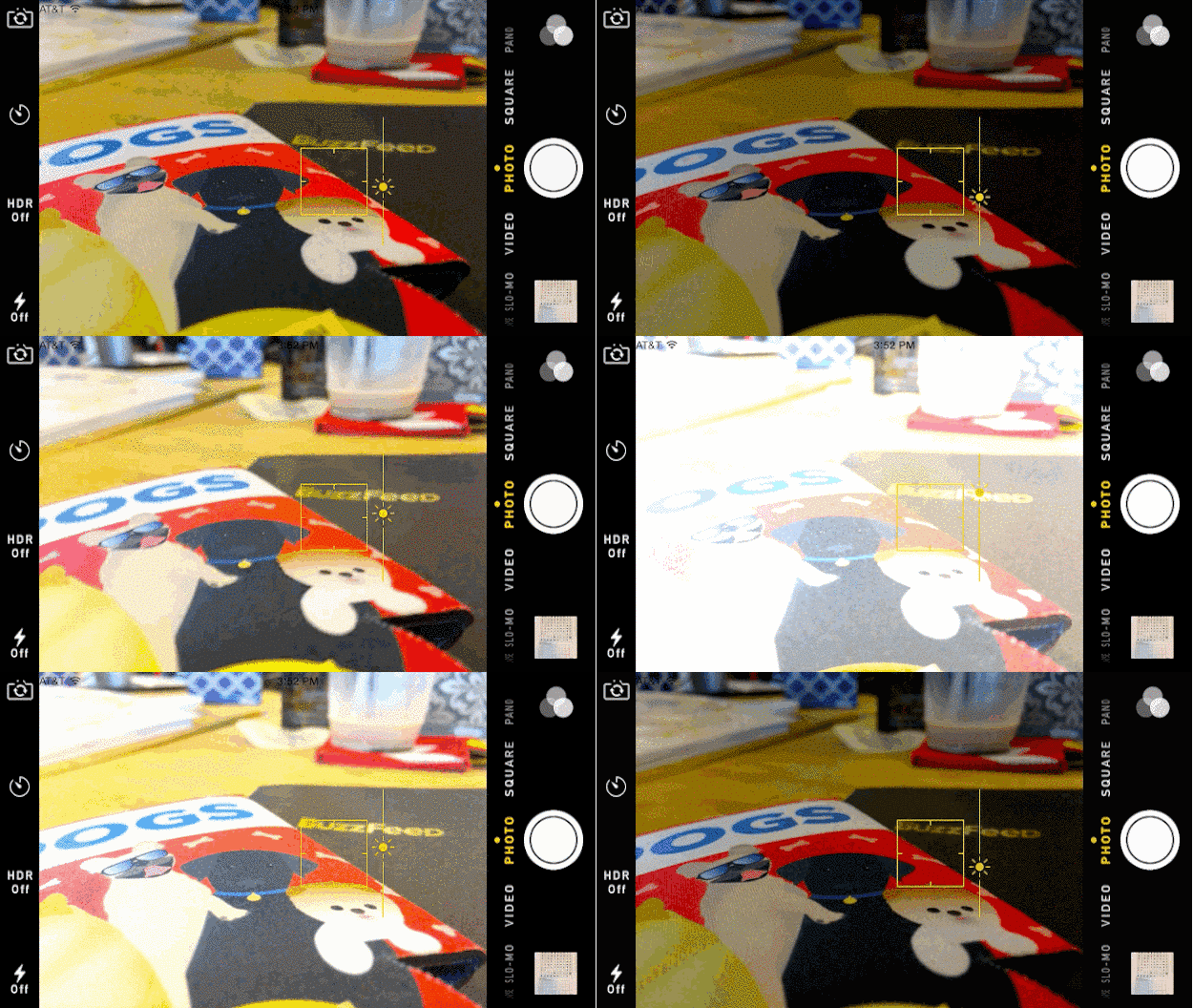
Is the scene you’re trying to capture too bright or too dark? Tap to focus, then slide your finger up or down to adjust exposure before you take the photo.

The typing experience *sucks* on every single TV streaming device. If you’re spending the night in and searching for something to watch, download these free mobile apps. They allow you to type quickly with the keyboard on your phone, instead of clicking the remote a million times: Amazon Fire TV, Remote by Apple, Roku, and Chromecast.

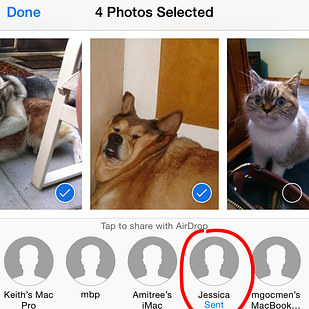

It’s called AirDrop, and when it works, it’s golden. You can only use it to send media (photos, links, and contacts) to other iPhones. The best part about AirDrop is that it sends photos really quickly. It’s faster than text or email.
To use it, turn on both Wi-Fi and Bluetooth. Have your friend do the same, then ask him or her to open Control Center (swipe up from the bottom) and tap AirDrop to enable wireless sharing. In Camera Roll, select all the photos you want to share. Tap the share icon, and your friend’s iPhone should appear at the top. Tap to share with AirDrop and the photos should appear in your friend’s Camera Roll immediately.
You could also use it to troll unsuspecting strangers with photos of space sloths.

Open the chat, tap Details in the upper right, select Leave this conversation.

Tristan Pope / Via vimeo.com
Get the smoothest, like-a-baby’s-butt video possible with this setting. If you have an iPhone 6 or 6 Plus, go to Settings > Photos & Camera > Record Video at 60 FPS. The phone’s built-in image stabilization will give videos a cinema-like effect.
This video of dancers was shot entirely on an iPhone 6.
16.

Hidden deep in your Settings is a location tracking feature that knows your most-frequented places. It’s turned on by default, and it’s *crazy* accurate. If you’d rather your iPhone not know where you’re spending most of your nights, open Settings > Privacy > Location Services, then scroll all the way down to System Services. Tap Frequent Locations, and slide it to “off.”
According to Apple, the setting is used for “personalized services,” like predictive traffic routing.

amctv.com / Via reactiongifs.com
In Settings > General > Siri > My Info, point Siri to your contact info.

So that when you’re driving and using Siri hands-free, she’ll call the right person, instead of your ex or something.
Open Siri by long pressing the home button > say “Call Nicole Nguyen” (or whoever), then when Siri responds with the incorrect pronunciation, reply with, “That’s not how you say that.” She’ll then prompt you to say the name correctly.

Remember when Tim Cook and Bono E.T.-finger touched and automatically downloaded U2’s Songs of Innocence album to every iTunes user’s account without their consent?
Banish it from your music library by heading to this link.
Disclosure: An iPhone 6 review unit was loaned to me by Apple for the purposes of this post.

Không có nhận xét nào:
Đăng nhận xét